Showing posts with label Tutorial: Photoshop and Custom Brushes. Show all posts

Basic Photoshop tutorial for artist:

Here is a Basic Photoshop tutorial for artist:
Photoshop Tutorial, Basic Photoshop walk around for artists and using photoshop as a painting tool. As you request, this video tutorial show you how to work around Photoshop to increase workflow and keyboard shortcuts, hotkeys for artist, drawing, and painting. If you are using photoshop for digital illustration, manga, anime and comics then watch the tutorial.

Question from Viewers:

Q: Lastly, let me make you a tutorial request:
Your tutorials are focused on digital drawing and painting so, maybe a basic tutorial about brushes, layers and the basic "digital environment" would fit well on this blog. I'm not talking about an in-depth Photoshop tutorial, but how to use the basic sketching and painting tools.

Watch: Here is a Walk Around Photoshop Basic for Artist Video tutorial:

Here are more about Photoshop, Brushes, and setting:
-Photoshop Workflow and Hot Keys
-Setting up your brush pen and tablet
-Making Basic Color Palette
-How to make a Photoshop custom brush #1
-How to make a Photoshop custom brush #2

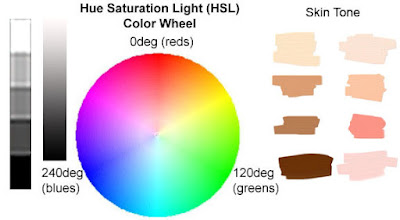
Color Palette Sample:

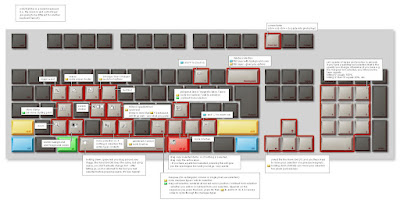
Here is a Photoshop Short Cut keys sheet:


FREE DOWNLOAD, Over 30 mins of Video TutorialsFree Drawing Tutorial video download

More tutorials:
-How to draw comics, woman character

-How to draw mecha cannon machine
-How to draw Comics woman, ninja
-Draw and paint metal armor character concept design.
-Learn to Draw Manga Ninja dude tutorial
-Basic Photoshop How to use tools for artists
-Set up your Wacom Tablet and brushes
-How to make Photoshop custom palette
-Photoshop short cut, hot keys for artists


Thanks for all overwhelming support and e-mails guys!!! Due to the high volume of e-mails and questions, I apologized that I cannot usually reply to you within a day or two. I will try my best to answer them all personally and get all the questions answer either by Videos or Post.


** If you have any basic questions or specific please looked up Q/A section. Most of the time your questions has already been answered in Q/A.
Or
If you need any help or support goto:
forum.idrawgirls.com our community will be able to help you.


Great Day, Peace!!!

Photoshop Wacom setting up your brush pen and tablet for digital painting

This video tutorial show you how to setting up your brush pen and tablet in Wacom Photoshop to increase workflow and keyboard shortcuts, hotkeys for artist, drawing, and painting. If you are using photoshop for digital illustration, manga, anime and comics then watch the tutorial.


Questions from Viewers:


Q: I would like to know which graphic tablet would do for me as a begginer the wacom intuos3 or the genuis mousepen graphic tablet? cause i want some thing that would do a good job good for me.


A: Thank you for your kind words, I am flatter. Tablet? If you are serious about doing art and such, I would recommend for serious beginner Wacom intuos3. It's worth. I am using intuos 2 & 3 and still love it. Keep on drawing and do your best.
If you are on the budget then go for Genius mouse pen, I heard that they are also great.


Q: Hey I was wondering what program and what brush settings you were using when you were drawing.

A: It usually OK to do LOW opacity (30-50) when you doing rough or preliminary. But then I recommend 75% - 100% for your mid way to final. Define soft edge and hard edge (I should make a vid about that.). Anyway, clean solid color is the way to go when finishing up. It will keep your image clean, fresh hues and increase readability. If you use anything less than 80%-90% when paint over and over it could make your image looks muddy and washed out.
**Always make sure that your wacom pen has opacity sensitivity "ON" It should be able to taper out and fade out when you draw soft, just like pencil or graphite or any traditional medium.

*** But really YOU HAVE TO FOCUS on the OVER ALL values and place them in the RIGHT PLACE. NO matter how many fancy layers you have, they won't do you magic if you DON'T UNDERSTAND BASIC VALUEs. SIMPLIFY when try to finish up, don't over do values in the certain area. Put light in the light, put dark in the dark. And make clean clear area of light and dark don't muddle them up. Craig Mullins said it best here, ""Decide what is in light and what is in shadow and don’t mix them up. Think like a comic artist. Two values, but if they are well thought out and designed and drawn they can look totally real. Think like that, but instead of making the light white and the shadow black, make the light a 7 and the shadow a 3. Then go ahead and use 5-10 in the light and 1-3 in the shadow to pull out sub forms. DO NOT use 1-5 in any part of the light, or use 5-10 in any areas of the dark. Keep you edges a little softer in the shadows, a little sharper in the light, you are done. (0 is black, 10 is white) Deciding what is in shadow and light for a particular object is pretty hard in words. I will leave that up to you and that is 99 percent of the struggle." and "Hierarchal significance for any color: 1. Value 2. Saturation 3. Hue" -Craig Mullins


Q: Did you tweak the pressure settings for the tablet pen?
And what is your setup for the layers (multiply, add....)?
Any details are appreciated.

A: I will show you on this video. You can set up your pen pressure in Wacom first
(Shown in this video) then set up another specific brush in Photoshop (Brush tutorials)
See:
-How to make a Photoshop custom brush #1

-How to make a Photoshop custom brush #2

I will also do a separate tutorial for layers :)

Basic Photoshop Wacom Brush Set up:


Thanks for all the e-mails.


Feel free to comment and if you have any question about how to draw and such. Do not hesitate to post any question, I will try my best to answer any question about art as much as possible.


ALSO if you want to see the BLOG update more often and not DISAPPEAR from the INTERNET, PLEASE help US DIGG, STUMBLE, TECHNORATI, send them to friend!!!!!

Photoshop: making color palette to use in digital illustration and painting

This video tutorial show you how to create a color palette in Photoshop to increase workflow and keyboard shortcuts for artist, drawing, and painting.
If you are using photoshop for digital illustration, manga, anime and comics then watch the tutorial.

Here are some questions from viewers:
(Again, I will try to response all the questions I recieved. I apologize if I cannot answer to them all at once, but I will make sure to get to all of them little at the time and will try my best to cover all aspect.) :)

Q: I've been wondering is where do you get inspiration for your poses? I've been having trouble recently creating any interesting pictures because I cannot move from just the flat head-on picture
Q:I am getting better, but I am bad at making life like poses. They're all stiff.

A: As for poses you can practice drawing many many times from life model (street, train, coffeeshop, or college or private art local life-drawing session)...you have to be quick and do a lot. Don't be discorage drawing from life, it takes time to perfect. Just keep up the drawing and you have to enjoy the process and learn from it. Or from reference pic. Process is the key once you nail it down the result will follow.

Q: And how do you make such straight lines?

A: use your should or elbow as a pivot point when you draw, not your wrist. Practice using big arch of your body to draw line, straight, curve. Also be decisive and stable when execute. Practice make perfect!

Q: So would it be possible to include an art gallery of static images of your work?

A: Yes, I could do some. Though most of the quick sketch I do for 5 mins tutorial are not as pleasing for me to look at. :P I will post them as long as they live up to my standard but I will post them more.

Q: Oh and one other thing, would you mind posting some of your artwork in a JPG format of some bigger size?

A: Sure I did it on the Cloverfield Monster and I will do more of that. Thanks :)

Q:
I was wondering, in your Photoshop tutorials you have this palette thing; what is that?
I could really use it. Is it a download or what?

Q: I was also wondering how you made your little palette that I see you use in all the tutorials?

Q: I also noticed you often have a color palette at the edge of the screen and wondered if you could talk a little bit about how you go about setting that up.

A: This video tutorial will show you guys how to make Palette. It is just a layer in Photoshop that I made up for my own reference.

Here is the Video Color Palette Tutorial:


Here is a Color Palette for download and you can tweak them as you like and make them however you like. (Use them as a layer in PS while you paint)
(Click to enlarge and right click to save)

Xia'a Palette 2010
xia's color palette

Photoshop workflow and keyboard shortcuts, hotkeys basic Tutorial

This video tutorial show you how to work around Photoshop to increase workflow and keyboard shortcuts, hotkeys for artist, drawing, and painting.
If you are using photoshop for digital illustration, manga, anime and comics then watch the tutorial.


Here are some questions from viewers:

(I will try to response all the questions I recieved. I apologize if I cannot answer to them all at once, but I will make sure to get to all of them little at the time and will try my best to cover all aspect.) :)


Q: You asked for input from your viewers, so I thought I’d ask a few basic questions such as: what size canvas do you work with in Photoshop when you’re working out your quick concept sketches?

A: Quick sketch usually 700 x 500 so that it response to me as quick as I move around and sketch.
Then after I got rough sketch nail down I will double size it and work some more until I have the value and composition then I will either double or triple (2500 x ....) again for final stage. And after I finish final, I will shrink it down to fit screen resolution (1/2 or 1/3 the size).
I got in a habit of working like that because my old computer doesn't response to PS as quick as it should, the bigger the size the slow the computer will be.
But if you computer can handle big files then by all means do it BIG.
It's all depending on what is the final resolution you want...work it two or three time of your final res.

Q: What brushes/tools and settings do you use most often when sketching poses?

A: I mostly use default circle brush (hard and soft) and my custom brushes set.
see here:
-How to make a Photoshop custom brush #1
-How to make a Photoshop custom brush #2

Tools and setting will be shown in this video tutorial:

Q: 've been drawing on paper up until now, I just got a pen and tablet and am trying to work in Photoshop now. I was just wondering if you could perhaps post up a basic tutorial demonstrating some of the tools you use for your artwork. I have a hard time finding exactly what tools you're using in Photoshop, such as different brushes or pen/marker types (maybe my Photoshop CS2 is outdated). Thank you and keep up all the brillaint work!

A: Thanks, I will show it on this Video. I also use CS2 and CS3, they are not much different at all. In fact, I prefer CS2 because you can drag images outside the program window, not in CS3.

Here is a video tutorial: Basic Photoshop work flow/ short cut/ set up


PS: I will talk about using layers and setting them up on the up coming video tutorial:


Here is a Keyboard short cut for you guys to use:
Print them out for reference:
(Click to enlarge and right click to save)


FREE Download Over 30 mins of video tutorialsFree Drawing Tutorial video download


Learn to make Photoshop custom brush for Drawing and Painting.

Learn to make Photoshop custom brush for digital Drawing and Painting. This is a basic video tutorial or lesson of how to make easy custom brush in photoshop. The particular brush I am going to make will mimic a pencil drawing and give a texture of pencil like when you draw. Though can customize it to your own preference. I usually use 60% opacity when I sketch in PS. Then when I paint I usually use 50%, 80% and 100% depending on the purpose and brushes I use.

Here is How to make an easy custom brush in photoshop:


Have fun!
Happy Monday